LinkedIn’s data download page has a new notice at the bottom. From December 2026, the export of your connections no longer includes their email addresses, current companies or job titles. If your network lives in Connect The Dots, nothing changes for you. If you were dropping that file into an AI assistant to search your network, that trick is about to stop working, and there is a much better one.
What is changing in the LinkedIn data export?
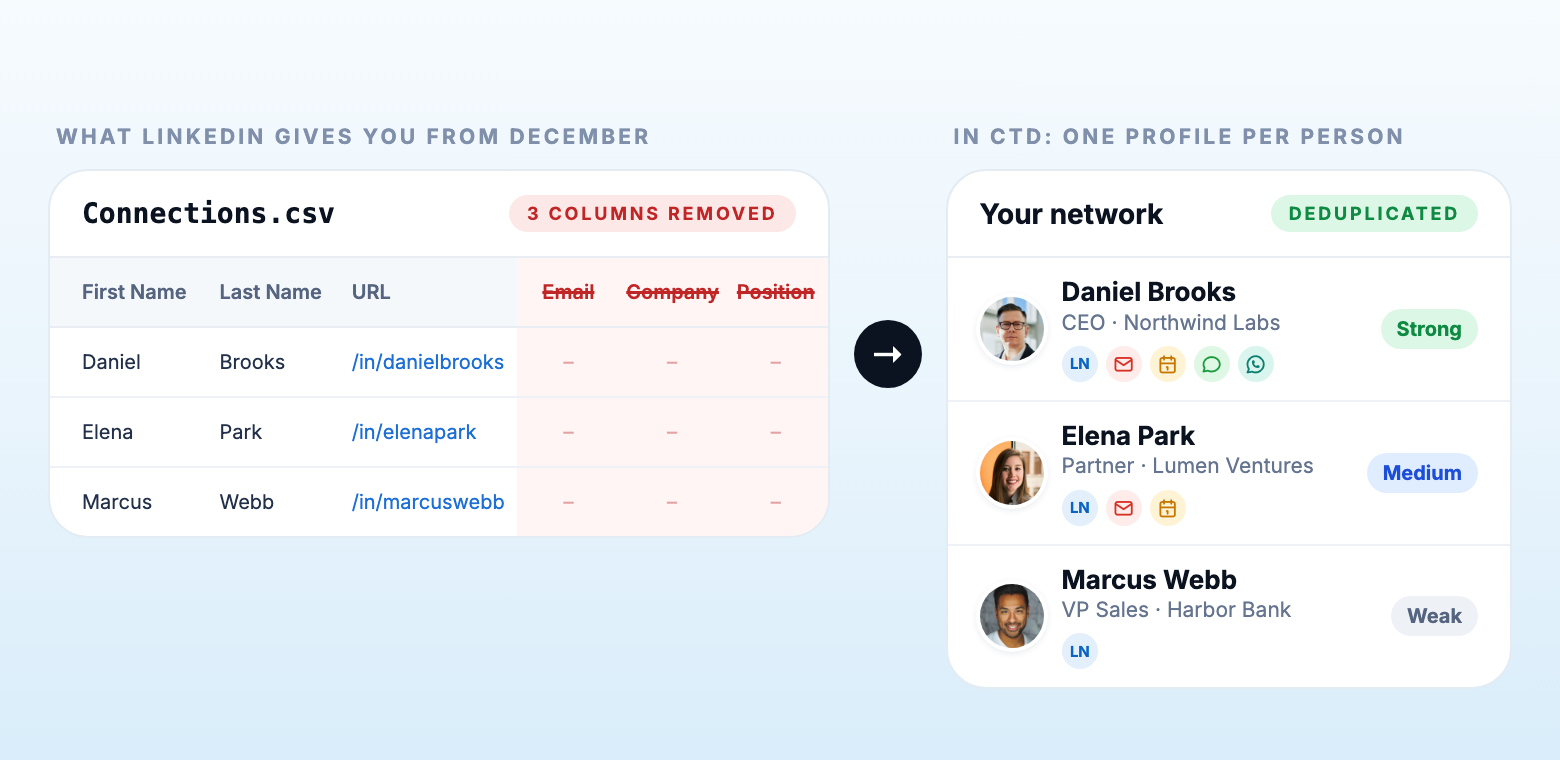
When you request a copy of your data from LinkedIn, the archive includes a file called Connections.csv, with one row for each of your first-degree connections. Until now every row had seven fields. From December it has four.
LinkedIn’s notice says the download “no longer includes your connections’ email addresses, current companies, or job titles.”
- What leaves: Email Address, Company and Position.
- What stays: First Name, Last Name, the profile URL and the date you connected.
- When: December 2026. LinkedIn has not published an exact day, so assume the start of the month.
- What is not affected: your connections themselves, and whatever people choose to show on their profiles.
Email addresses were mostly gone already, since LinkedIn only ever included one when the connection had opted in. In one published export of 1,086 connections, 13 rows had an email. The real loss is company and job title, because those two columns were what made the file searchable.
How to download your LinkedIn connections before December
If you want a copy of your connections that still says who works where, request it before the month starts.
- Open your data settings. In LinkedIn, go to Settings & Privacy, then Data privacy, then “Get a copy of your data”.
- Request the full archive. It includes Connections.csv and messages.csv.
- Wait for the email. LinkedIn sends a download link when the archive is ready, which can take up to a day.
- Download, unzip and store it carefully. The file holds other people’s details, so treat it like a contact list.
You don’t need this copy for CTD. It is worth having only if you want the old columns for your own records.
Does the LinkedIn import in CTD still work?
Yes. CTD doesn’t need the columns LinkedIn is removing.
A name and a profile URL are enough for CTD to know who each connection is. Identity resolution runs in the background on every import. It matches each row to one person in our graph, fills in where they work today and what they do there, and merges them with the same person from your email, calendar and phone. That is how CTD has always turned a flat list into a network, and it is why this change passes us by.
Same file, same steps
Request your archive from LinkedIn and upload Connections.csv on your accounts page. Exports from before December and after it both work. The guide has the full steps.
Companies and roles are still there
You still see where your connections work and what they do, because CTD resolves that itself and doesn’t read it from the file.
Fresher than the file ever was
The Company and Position columns were a snapshot of the day you downloaded them. CTD follows job changes, so you see where people are now and who has just moved.
The same goes for admins who upload LinkedIn connections for external members. A board member’s or investor’s export works the way it did before.
Can you still ask ChatGPT or Claude about your LinkedIn connections?
Not from the export alone.
A neat habit spread over the last couple of years: download Connections.csv, drop it into Claude or ChatGPT, and ask. Which of my connections are CEOs? Who do I know at this company? Who are the recruiters? It worked because every row carried a company and a title.
From December the same file is a list of names and links. No AI assistant can tell you who the CEOs are from that.
Plenty of people are rushing to download one last full copy before the cutoff. Go ahead, it costs nothing. But that copy starts aging the day you save it. People change jobs, you keep adding connections, and the next export won’t fill the gaps.
How to ask AI who you know, across every source
Here is the better trick. Put your network in CTD and ask there. You get the answer you used to get from the CSV, about far more people than LinkedIn ever knew you had.
- Not only LinkedIn. CTD brings together your email, calendar and contacts from Google and Outlook, your LinkedIn connections and messages, your iPhone contacts, iMessage and WhatsApp.
- One profile per person. Someone you email, meet, text and follow on LinkedIn is still one person. CTD resolves and deduplicates across every source, so you get one profile for them, not five.
- Relationships, not rows. Every relationship is scored from real communication across all of those sources, so “the CEOs I know” comes back sorted by how well you know them.
- Current roles. Titles and companies stay up to date without another export.
And the best part: CTD plugs into the AI you already use. Connect it to Claude, ChatGPT or any other MCP-compatible assistant, and ask for every CEO in your network, across all your sources, in plain language. There is nothing to upload and nothing to re-export.
Things to ask on day one:
- “Who are the CEOs in my network?”
- “Which VPs of Sales do I know in New York?”
- “Who do I know at [company], and how well?”
- “Who in my network changed jobs recently?”
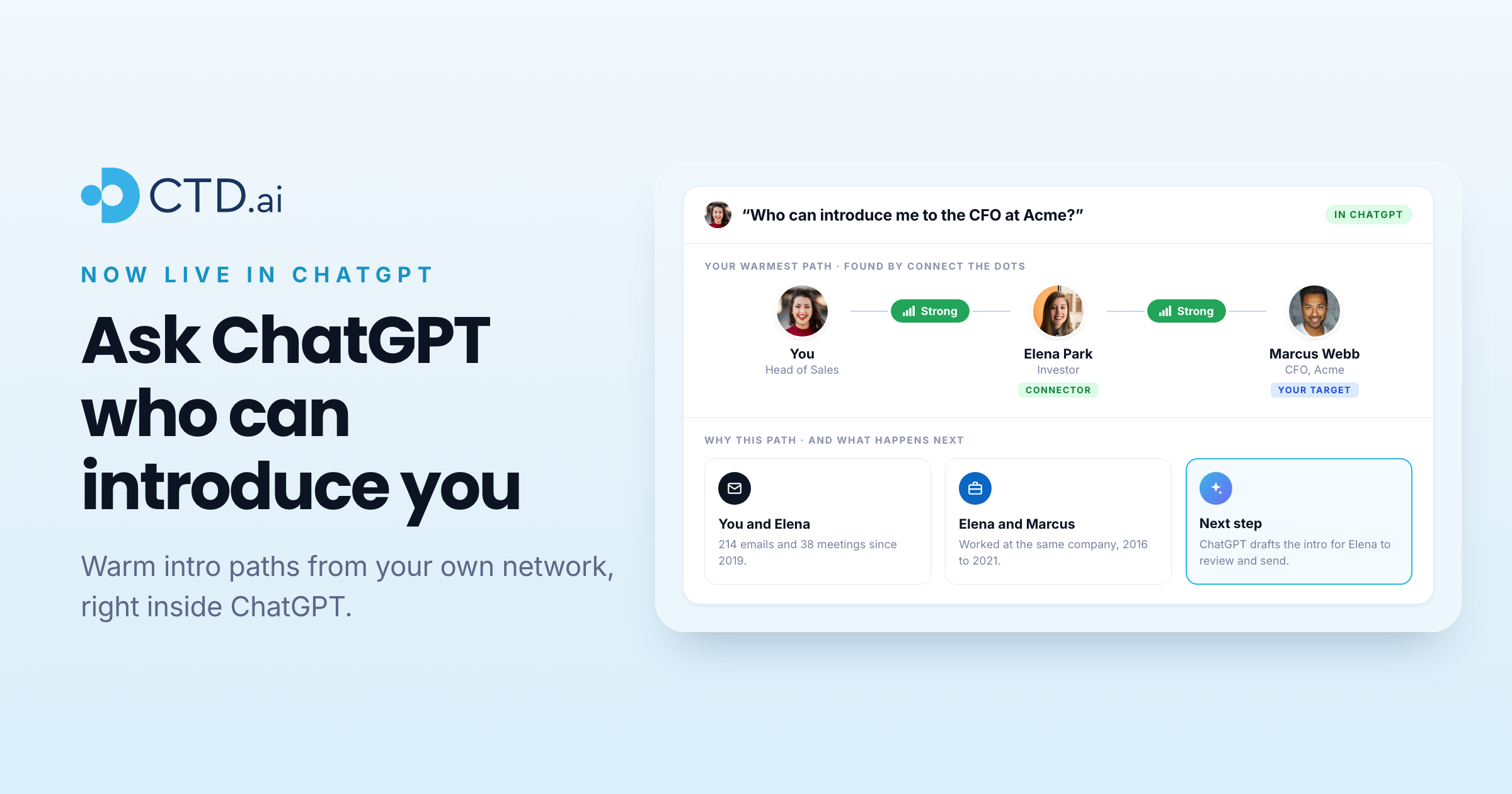
- “Who can introduce me to the CFO at [company]?”
That last one is where a CSV never got you. CTD is relationship intelligence software: it finds the people you know, and also the people they know, and turns that into warm introductions. With a Business workspace the question gets bigger still. It is no longer “who do I know?” but “who does anyone at my company know?”
How to get started with CTD
- Sign up for free. CTD is free for individuals.
- Import your LinkedIn connections. Upload Connections.csv on your accounts page. It doesn’t matter whether you exported it before December or after.
- Add the rest of your network. Connect your email, calendar and contacts, then your phone contacts, iMessage and WhatsApp.
- Ask. Search in CTD, or plug it into the AI you already use and ask “Who are the CEOs in my network?”
Frequently asked questions
What is LinkedIn removing from the connections export?
Three fields in Connections.csv: Email Address, Company and Position. First Name, Last Name, the profile URL and the Connected On date stay.
When does the LinkedIn export change take effect?
LinkedIn’s notice says December 2026 and doesn’t name a day. If you want a personal copy that still has companies and job titles, request your archive before December starts.
How do I export my LinkedIn connections?
In LinkedIn, open Settings & Privacy, then Data privacy, then “Get a copy of your data”, and request the full archive. LinkedIn emails you a download link, and the archive contains a file called Connections.csv.
Why is LinkedIn removing companies and job titles from the export?
The notice on LinkedIn’s download page doesn’t give a reason. It says you can still see what your connections share on their profiles.
Does the LinkedIn import in Connect The Dots still work after the change?
Yes. CTD identifies each connection from the name and profile URL, which stay in the file, and resolves the current company and role itself. The upload steps are the same.
Do I need to re-import my LinkedIn connections before December?
No. Connections you have already imported stay as they are, and future imports work with the new file. Re-import whenever you want to add new connections, as before.
How does CTD know where my connections work without the Company column?
Through identity resolution. CTD matches each connection to a single person in its graph, built from publicly available professional data and from the sources you connect, and that match carries the person’s current company and role.
Can I still ask Claude or ChatGPT about my LinkedIn connections?
Not from the export alone, because it no longer says where anyone works or what they do. With CTD connected to Claude or ChatGPT, you can ask about your LinkedIn connections and everyone else you know from email, calendar, contacts and messaging.
What is an alternative to the LinkedIn connections export for searching my network?
Connect The Dots. It imports your LinkedIn connections, resolves each person’s current company and role, merges them with your email, calendar, contacts and messaging, and lets you search or ask an AI assistant who you know.
Is Connect The Dots free?
Yes, CTD is free for individuals. Paid plans add unlimited usage for individuals and a shared company network for teams. See pricing.