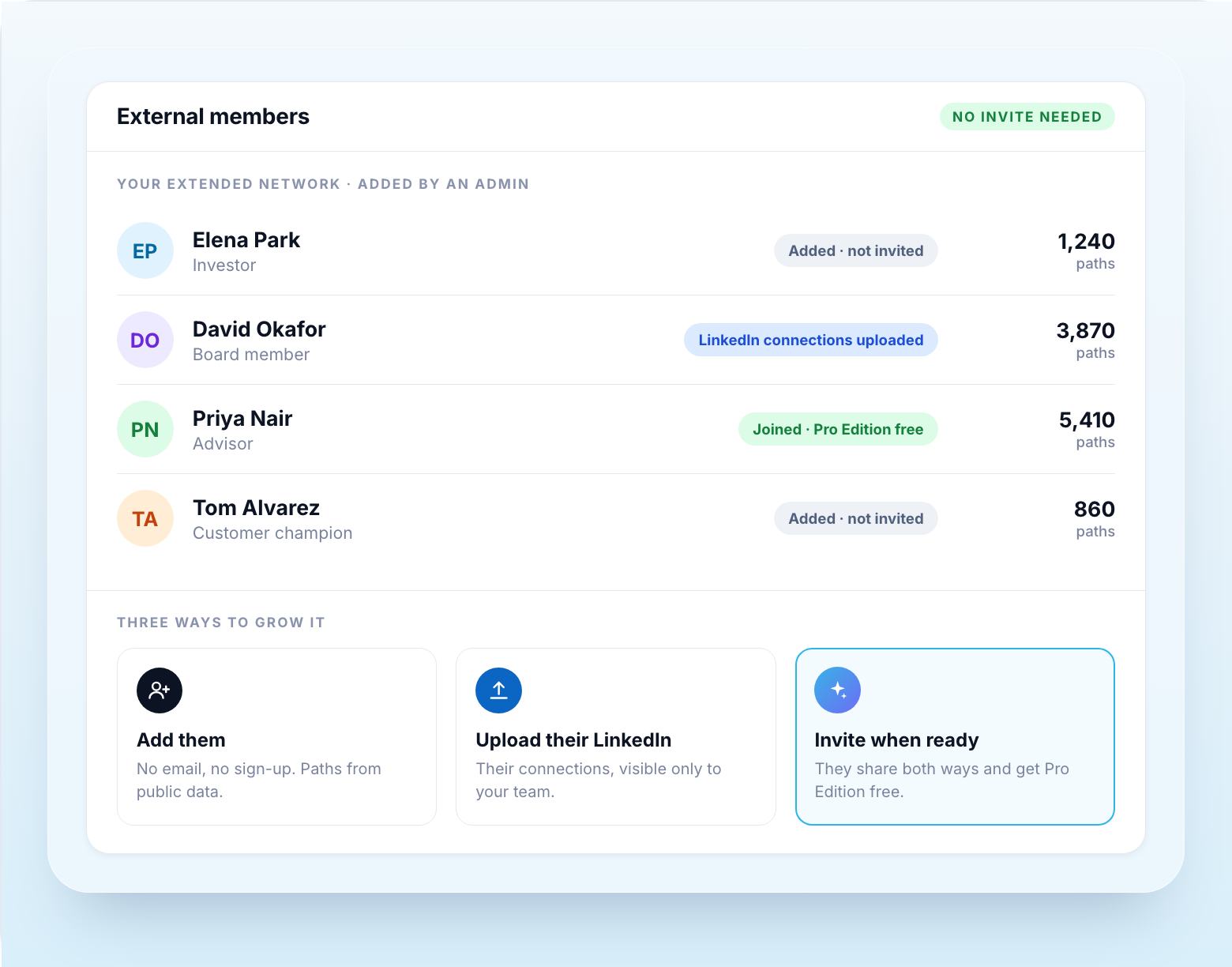
Admins of a Connect The Dots workspace can now add external members without inviting them. Board members, investors, advisors, partners, alumni and customer champions become part of your company network the moment you add them. They don’t get an email, they don’t create an account, and nothing is asked of them.
What is an external member?
An external member is someone outside your company whose network can help it: a person who would make an introduction if you asked. A CTD Business workspace has two rosters. Users are your coworkers, each with a seat. External members are everyone else, and they are unlimited at no per-seat cost.
CTD is relationship intelligence software: it maps who your company knows and how well, and turns that into warm introductions. External members extend that map beyond your own team, to the people around your company.
- What is new: add external members without an invite, upload their LinkedIn connections for them, give them Pro Edition free when they join, and manage all of it through the API and MCP.
- Who it is for: admins of CTD Business workspaces.
- Where it lives: the Members section of your admin console, the API and the MCP.
Who should you add to your extended network?
Think of everyone who wants your company to win and knows people you don’t:
- Board members and investors. They know buyers, partners and candidates across their whole portfolio. See the network nobody can see and the board meeting network playbook.
- Advisors. Usually chosen for who they know as much as what they know.
- Partners and referral partners. They already have a reason to send business your way.
- Alumni. Former employees who left on good terms and now sit inside companies you want to reach.
- Customer champions. Happy customers whose peers look a lot like your next customers.
- Portfolio founders. For venture capital and private equity firms, every founder you add extends the reach of the whole firm. More on relationship intelligence for VC and PE.
Every member has a type. CTD comes with Investor, Board member, Partner, Advisor, Customer champion, Vendor and Other, and you can create your own, such as Alumni or Referral partner.
How to add board members and investors without an invite
Growing a network beyond your own team used to start with a favor: send an invite, wait for the person to sign up, hope they connect their accounts. The people who could help you most are often the ones you would rather not send a sign-up link to, like a board member with a full inbox or a customer champion who has already done plenty for you.
Now you add them yourself. Give CTD a LinkedIn profile URL or an email address, choose a type, and set a relationship owner: the person on your team who holds that relationship.
CTD does not contact them. Using publicly available data, such as where they have worked and who they worked with, CTD maps the people they are likely to know and turns that into paths your team can act on. When someone finds a path through an external member, they also see who owns the relationship, so the ask comes from the right person.
Can you upload a board member’s LinkedIn connections for them?
Yes. Public data gives you likely relationships. A LinkedIn connections export gives you real ones.
If an external member sends you their LinkedIn connections file (the Connections.csv from LinkedIn’s data export), an admin can upload it to that member’s profile. Their first-degree connections join your company network, and the member still doesn’t need an account.
Those connections are visible only to your workspace. A new upload replaces the earlier one, and removing the member removes the connections you uploaded for them. The guide has the full steps.
Invite them when you’re ready, and they get Pro Edition free
Adding someone is a start. When you invite an external member and they accept, they create their own CTD account and connect their email, calendar, contacts and LinkedIn. Paths through them are then built from real communication, so there are far more of them and they are far stronger.
Sharing goes both ways. By accepting, they agree to share their network with your company, and your company shares its network with them.
In return, every external member who joins gets CTD Pro Edition, our paid plan for individuals, free for as long as they are an external member:
- Their whole network organized in one place, synced from email, calendar, contacts and LinkedIn.
- Unlimited ghost messages, lists and AI search.
- API and MCP access for their own account, with no usage limits.
- The CTD mobile app for iPhone and Android.
All of it for $0. An invitation to CTD is now something you give, not something you ask for.
You can send the invite yourself or prepare it for someone else to send, such as your CEO. Invites go out by email by default, or as a LinkedIn message or a text.
Manage members from your AI assistant, or in code
Everything an admin does in the Members section of CTD is now available through the API and the MCP. That covers both rosters.
Your team
See every user with their role, last activity, LinkedIn import date and mailbox sync status. Add coworkers, deactivate a seat while keeping its data, give a seat back, and make or remove workspace admins. See how many API and MCP calls your workspace makes, and who makes them.
Your external members
List the roster by status. Add members without inviting them, set their type and relationship owner, and create, rename or delete types. Upload a member’s LinkedIn connections. Invite members from your own mailbox or prepare the invites for someone else to send. Get your workspace invite link. Archive or remove a member.
These tools are for workspace admins. Everyone else keeps their own API key and MCP connection, without access to member management.
The CTD admin skill for Claude
To make this easy to use, we packaged it as a skill for Claude. Install it once and Claude knows how the two rosters work, which tool to use for each request, and when to stop and ask you. Then just say what you need:
- “Add these people as external members, type Advisor, with me as owner, without inviting them: [LinkedIn URLs].”
- “Upload this Connections.csv to Elena Park’s external member profile.”
- “Create a member type called Alumni and move these five people to it.”
- “Prepare invites to our investors from our CEO to review and send.”
- “Who joined but connected nothing? Whose invite has gone unanswered for two weeks?”
- “Add jane@yourcompany.com to our workspace as an admin.”
- “Who hasn’t imported LinkedIn in the last six months?”
Claude never changes your workspace on its own. It shows what it is about to do, who is affected and who an invite would come from, then waits for your yes. Adding a coworker uses a paid seat, and Claude says so first.
The skill also comes with a CTD Admin page: a live view of your users, external members, ghost message activity and API and MCP usage that opens next to the chat.
- Connect CTD to Claude if you haven’t yet (here is how) and sign in with your workspace admin account.
- Download the skill: ctd-admin-skill.zip.
- Install it. In Claude Desktop or Cowork, go to Settings → Customize → Skills, select Add → Upload a skill and choose the zip file.
- Ask: “What can I do as a CTD admin?”
The skill is for Claude. The admin tools themselves are part of the CTD MCP and API, so you can also call them from your own code or agents. The CTD admin skill guide lists everything you can ask.
How to get started in the app
- Open Members in your admin console.
- Add the people already rooting for you. A LinkedIn URL is enough. Set a type and a relationship owner for each. The guide has step-by-step instructions.
- Upload LinkedIn connections for anyone who has shared their export with you.
- Invite the ones who would enjoy CTD themselves. They get Pro Edition free, and you get paths built from real relationships.
Frequently asked questions
How do I find warm introductions through my board members and investors?
Add each board member, investor and advisor as an external member in Connect The Dots. CTD maps who they are likely to know, matches that against the people and companies you want to reach, and shows your team the paths. You can then make a specific ask through the person who owns that relationship, in place of a general request for introductions.
Can I upload someone else’s LinkedIn connections to Connect The Dots?
Yes, with their agreement. The external member exports their Connections.csv from LinkedIn and sends it to you, and a workspace admin uploads it to that member’s profile. The connections are visible only to your workspace, and the member does not need a CTD account.
What is an external member in Connect The Dots?
An external member is someone outside your company whose network can help it: a board member, investor, advisor, partner, referral partner, former employee or customer champion. External members sit on their own roster in a CTD Business workspace, separate from the coworkers who have seats, and they are unlimited at no per-seat cost.
Does CTD contact the people I add as external members?
No. When an admin adds an external member, CTD sends them nothing and they do not need an account. They hear from CTD only if you choose to invite them.
Where do the paths come from if the person never signs up?
From publicly available data, such as where a person has worked and who they worked with. CTD maps the people they are likely to know and turns that into paths your team can act on. Uploading their LinkedIn connections export adds their real first-degree connections on top.
Who can see an external member’s uploaded LinkedIn connections?
Only your workspace. An admin uploads the member’s Connections.csv to that member’s profile, and the connections are used for paths inside your company network. A new upload replaces the earlier one, and deleting the member also deletes the uploaded connections.
What do external members get when they accept an invitation?
They get CTD Pro Edition free for as long as they are an external member: their own network organized in one place, unlimited ghost messages, lists and AI search, API and MCP access for their own account, and the mobile app. By accepting, they agree to share their network with your company, and your company shares its network with them.
Can I manage coworkers through the API and MCP too?
Yes. Admins can list users with their role, last activity, LinkedIn import date and mailbox sync status, add coworkers, deactivate a seat while keeping its data, give a seat back, and make or remove workspace admins. Every external member action is available as well.
Who can use the admin tools?
Workspace admins on a CTD Business workspace. Other users keep their own API key and MCP connection, without access to member management.
Does Claude change my workspace on its own?
No. With the CTD admin skill, Claude shows what it is about to do, who is affected and who an invite would come from, and waits for your yes before it adds, invites, changes or removes anyone.