The CTD HubSpot integration syncs your company records into CTD so warm paths, relationship scores, and target-account intelligence are built on the accounts that matter to your team. You connect HubSpot once, choose which companies sync, and map HubSpot properties to CTD fields — all from your CTD workspace settings.
What the integration does
- Pulls your HubSpot company records into CTD to power relationship intelligence
- Lets you sync every company, or only the companies that match your target-account filters
- Marks matching companies as target accounts in CTD
- Maps HubSpot company properties to CTD fields so your data stays consistent
- Keeps the connection under your control — reauthorize or disconnect at any time
Before you start
- You need to be a CTD admin for your workspace.
- You'll authorize with a HubSpot account that can grant access to your company records.
- Only one CRM can be connected at a time. If Salesforce is already connected, disconnect it first — CTD will block the HubSpot connection until you do. See Salesforce integration.
Step 1: Open the HubSpot integration settings
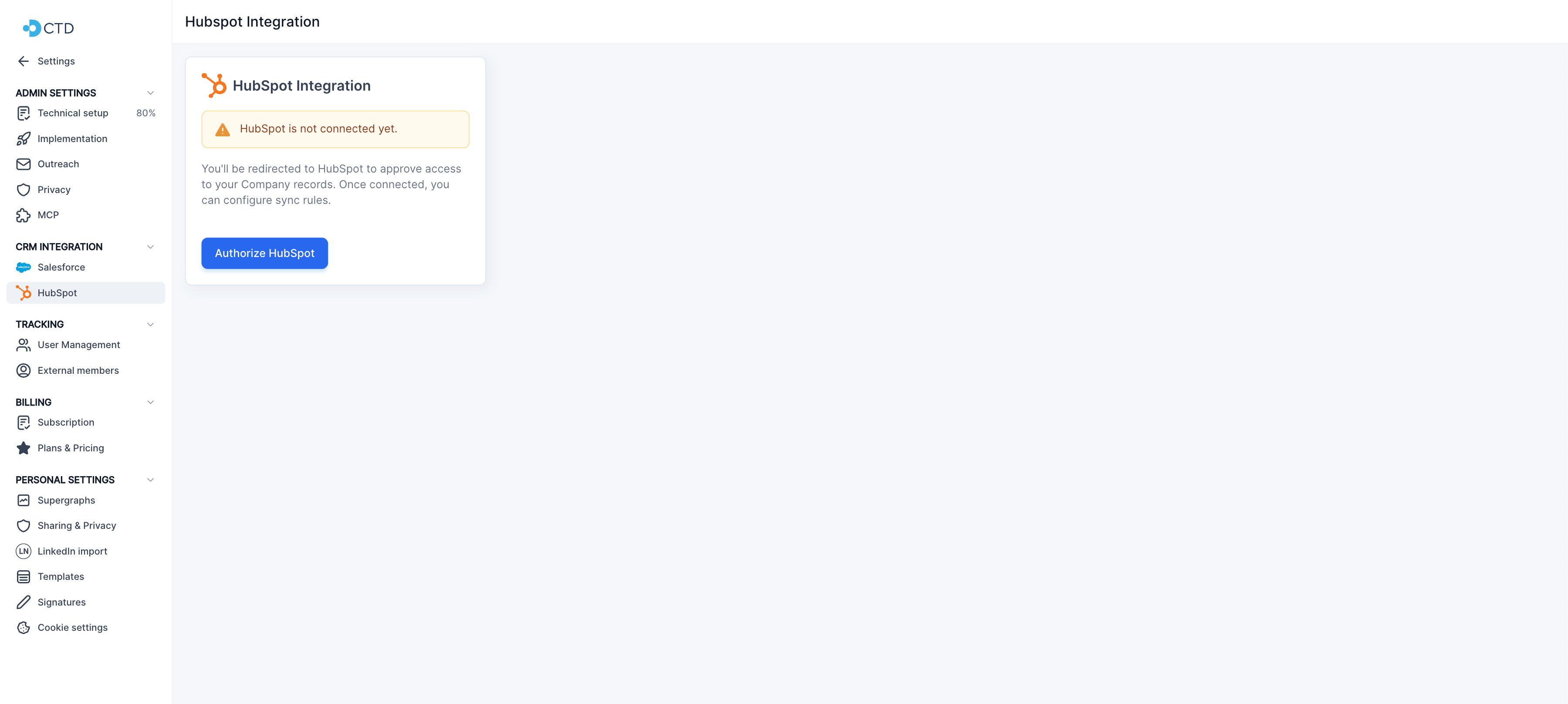
In CTD, go to Settings → Enterprise Admin → HubSpot. This opens the HubSpot Integration page, where you'll see the connection status and (once connected) your sync configuration.
Step 2: Authorize HubSpot
Click Authorize HubSpot. You'll be redirected to HubSpot to approve access to your company records. CTD requests read access to your companies, company schemas, and owners — it does not request write access to your CRM. After you approve, HubSpot sends you back to CTD and the connection is exchanged automatically. When it succeeds, you'll see "HubSpot is connected" along with the connected account.
Step 3: Choose how CTD syncs companies
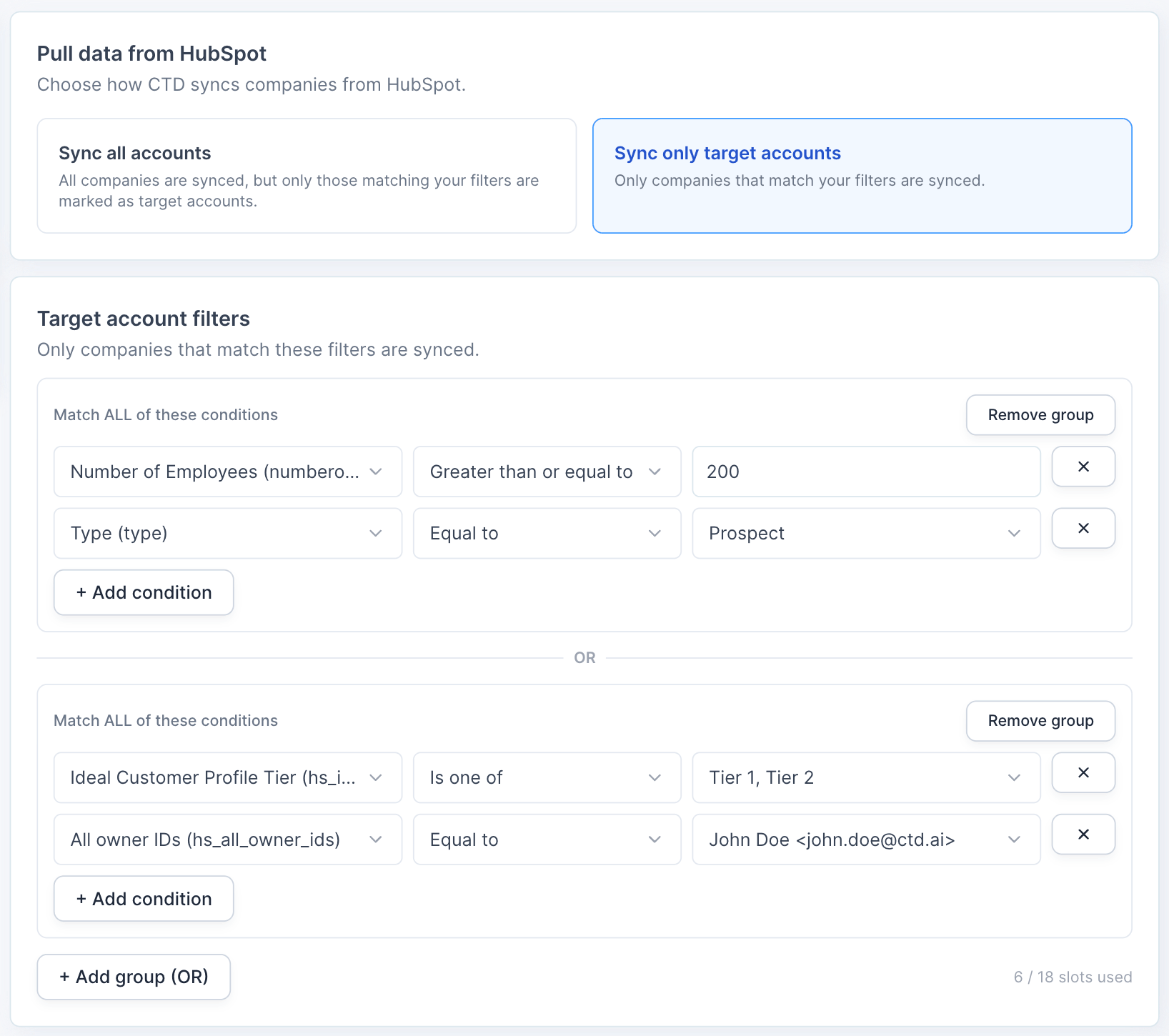
Under Pull data from HubSpot, pick a sync mode:
- Sync all accounts — every company is synced, but only the ones matching your filters are marked as target accounts.
- Sync only target accounts — only companies that match your filters are synced.
Step 4: Define your target account filters
Use the Target account filters builder to describe which companies count as target accounts. Build conditions on any HubSpot company property using operators like Is, Is one of, Is between, Contains, Has any value, and their negations. Every condition needs a property and, depending on the operator, a value before you can save.
What your filters do depends on the sync mode from Step 3: in Sync all accounts they flag target accounts; in Sync only target accounts they decide which companies are synced at all. You can group conditions and combine groups with OR to build more precise target lists.
Step 5: Map fields
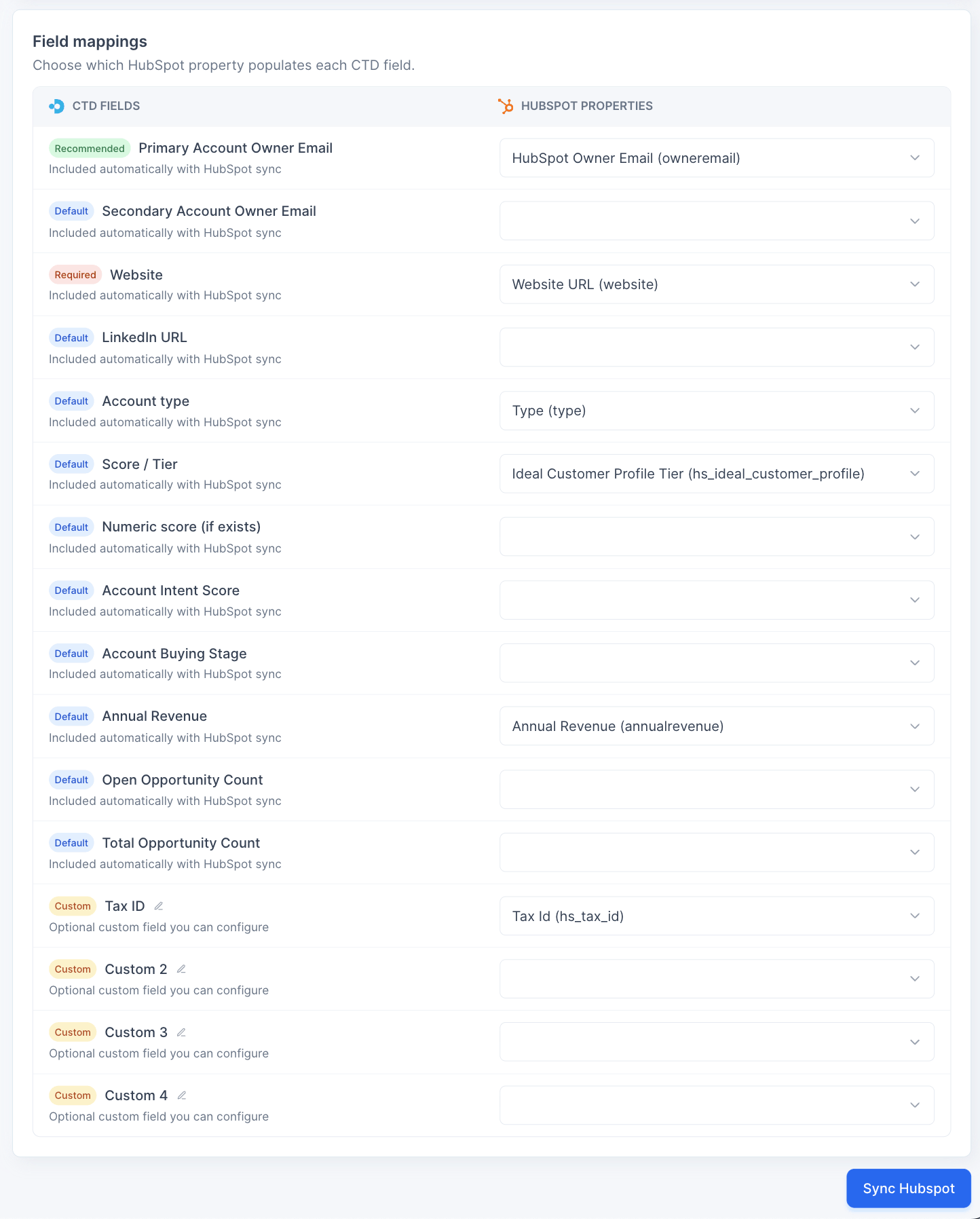
In Field mappings, choose which HubSpot property populates each CTD field. Each HubSpot property can map to only one CTD field — if you map the same property twice, CTD asks you to remove the duplicate before saving.
Step 6: Save and sync
Click Sync HubSpot to save your configuration and start the sync. CTD confirms with a "HubSpot sync settings saved" message. You can come back and adjust your sync mode, filters, or field mappings any time.
Managing the connection
- Reauthorize HubSpot — re-run the approval flow if permissions change or the connection needs refreshing.
- Disconnect HubSpot — revokes the connection and permanently deletes all synced company data and your sync configuration. This can't be undone, so CTD asks you to confirm first.